
CUDA Emulation
-
Book Excerpt from "CUDA C++ Debugging: Safer GPU Kernel Programming" (full text online)
-
by David Spuler
CUDA CPU Emulation
Is it possible to run a CUDA program without a GPU? This is desirable for playing around to learn CUDA, or teaching a class of students about CUDA programming.
There was a CUDA emulator as part of the main toolkit,
but it’s since been removed.
It’s only supported as far back as the CUDA Toolkit 3.0 version,
using a “-deviceemu” option.
Once upon a time there was also a PGI compiler that ran CUDA programs on a CPU. This company was acquired by NVIDIA in 2013, and the PGI compiler has since been merged into the NVIDIA HPC SDK and the PGI name and products were subsequently retired.
However, here’s a solution in the cloud: Google Colab offers a free tier whereby you can run CUDA C++ code on a virtual machine. It’s not really an “emulation” but more like a full GPU for free up in the cloud. You can set up a Linux virtual environment with a real GPU attached and CUDA installed, and it’s free for low-end T4 GPUs (as of this writing). You have to pay for some more advanced capabilities like A100 GPUs, but the low-end tier is fine for learning and experimenting with CUDA. I’ve described how to set that up further below.
CUDA C++ Emulation Library
At Aussie AI, we have implemented a CUDA wrapper library in basic C++ for emulation of a very small subset of CUDA on CPU. This is primarily useful as a learning and teaching tool, but does not support enough CUDA primitives for production usage. Find more details at https://www.aussieai.com/cuda/projects.
The idea is to run basic CUDA C++ code without a GPU, so that they can be tested in non-CUDA platforms like Microsoft Visual C++ on Windows and GCC on Linux. The main advantages:
- No GPU needed!
- Does not need the CUDA Toolkit installed.
- Non-CUDA C++ compiler support.
This library is primarily for educational and basic testing purposes. You can run some simple kernels in a simple C++ environment, and learn some of the basics. The emulation will also detect some common failures in your basic CUDA kernels, as part of the emulation mode on CPU.
Main features. The emulator works by intercepting the CUDA primitives in basic C++, and then calling emulation versions of them. The main capabilities include:
- Emulates several basic CUDA primitives (e.g.,
cudaMalloc,cudaMemcpy) - Runs in standard C++ on Microsoft Visual Studio on Windows and
gccon Linux. - Launches CUDA kernels in emulation mode that runs the threads sequentially (simpler to debug).
- Detects various common CUDA primitive kernel errors (e.g., memory errors, double deallocation).
- Detects common kernel programming errors (e.g., array bounds violations in threads).
How it works. The basic architecture for the emulation library is:
- Source code interception in a basic C++ compiler (i.e., not NVCC).
- Preprocessor macro interception of CUDA primitives (e.g.,
cudaMalloc,cudaFree). - Emulation of these basic CUDA primitives in simplified C++ coded versions.
- Preprocessor macro interception of C++ primitives (e.g.,
malloc,free). - Link-time interception of C++
newanddeleteoperators. - Various error checks performed inside the emulated C++ and CUDA C++ functions.
Limitations. This emulation library is not a production-grade CUDA emulator by any means! Its value is more in the educational domain for learning CUDA basic concepts. Some of the main problems include:
- Limited subset of CUDA APIs are intercepted.
- Most CUDA library calls are not emulated.
- Syntax is not identical (e.g., the
<<<...>>>kernel launch syntax must be modified). - Synchronization across threads in CUDA kernels is not properly emulated.
- Shared memory usage in threads is not emulated.
This emulation library may be extended or modified. Feel free to use it to learn CUDA with my best wishes on your success.
Running CUDA in Google Colab
An alternative to using CUDA Toolkit on your own machine
is to run it in the cloud on someone else’s GPU.
Google Colab is a free online environment for running and testing code
in a virtual Linux box.
It’s not really an “emulation” but it can feel like it.
You can test CUDA C++ programs using nvcc compiler and real GPU hardware somewhere underneath the virtual layers.
And did I mention: for free!
The steps are basically:
1. Open a new notebook in Google Colab
2. Change the “runtime” to be a GPU (e.g., T4 GPU)
3. Upload a CUDA C++ file to Google Colab (e.g., “test1.cu”)
4. Run the nvcc compiler.
5. Run a.out (the executable)
6. Save your notebook.
More details on each step are given below.
1. Open a new Google Colab virtual notebook. You need to follow these steps:
- You’ll need to be signed in to your Google Gmail account, or create a Google account.
- Navigate your browser to Google Colab: https://colab.research.google.com/
- Click on
File > New Notebook
2. Change the Notebook’s Runtime to GPU. The steps in more detail:
- Click on
Runtime > Change runtime type - Choose a GPU, such as “T4 CPU” (free). Or you can pay more for A100 GPU environment. But you don’t need more than the free one to test simple CUDA C++ code.
- Click “Save” to confirm your choice of GPU mode.
- Now you have a virtual Linux box which is setup for GPU, including with the CUDA Toolkit installed virtually.
- You don’t need to do any steps to install CUDA or
nvcc.
3. Upload a CUDA C++ file. The steps to upload your source code file:
- Store your CUDA C++ code on your PC in a single file (for simple examples), ready for upload.
- Ensure the file suffix is “
.cu” or “.cpp” (e.g.,test1.cu) - Click on the “Folder” icon in Google Colab (an icon on the LHS vertical panel).
- This will expand out a view of your virtual files and folders.
- By default, you are probably in the “
/content” directory on the virtual Linux filesystem. - Click on the “Upload” icon (top LHS icon, with an up arrow on top of a file icon).
- Choose your “
test1.cu” file from your local PC drive. - Confirm your upload choice in the file browser (e.g., click “Open” on Windows).
- The newly uploaded file should, after a brief delay, appear in the files and folders view on Google Colab.
4. Run nvcc to compile your CUDA C++ file.
Here are the steps:
- Create a new “+Code” cell in Google Colab.
- Edit the new cell to have a command like:
!nvcc test1.cu - Note that “!” is required, and means to run the command in a Cell. Also, use lower case letters.
- Note that “
nvcc” in lower case letters is the command for the NVIDIA C++ Compiler (NVCC). - Click on the “Play” (triangle) button or “run cell” to execute this new cell.
- This should run the
nvccCUDA C++ compiler to create your executable file into “a.out”. - Wait for the Cell to finish executing (i.e., wait for the button icon to stop spinning).
- After a brief delay, you should see a new file called “
a.out” appearing in the Files/Folders view.
Failed compilation.
If your CUDA C++ code has a compilation error, nvcc won’t create an executable file,
and you’ll get some error messages instead appearing inside the cell’s output area.
- If there’s not a new
a.outfile in the Folder view,nvccprobably failed to compile, because of a syntax error in your CUDA C++ code. Review the warnings fromnvcc. - Edit your CUDA C++ source file to fix any errors.
- You can edit it in the virtual environment by double clicking on the filename. This opens a text editor in your Google Colab notebook, but note that you’ll lose any changes if your notebook shuts down.
- Alternatively, you can re-edit the file on your PC and re-upload the edited file to Google Colab.
- Re-run the
nvcccell to compile the newly edited CUDA C++ file and create “a.out”.
5. Run your a.out executable.
- Create another “+Code” cell in Google Colab.
- Use command:
!a.out - Note that “!” means run the command, and “
a.out” in lower case letters is the name of the executable. - Click on the “Play” (triangle) button to run the cell.
- The output from your CUDA C++ program should appear.
- Hooray!
6. Save your notebook (optional). Note that your uploads to Google Colab are not automatically saved. That’s too much to expect for a free service. It will eventually time out, and your uploaded files will also disappear from your notebook folders if you close your browser. If you’ve edited these files inside Google Colab, you lose your changes.
One partial fix is to create backups of your notebook,
either on your PC or in Google Drive.
There is a “Download” option for your entire notebook.
For Google Drive backups, when inside Google Colab, use the “File > Save a copy in Drive” menu.
However, this doesn’t seem to save and restore your uploaded files,
but only the “notebook” part with all the cells.
A better fix to save all files and also avoid manually backup and restore of your entire notebook is to map Google Drive into your folder hierarchy. The idea is to “mount” your Google Drive files as a subdirectory inside your Colab notebook. Then you can save the files into that folder in Colab, and they’ll then be stored in Google Drive. Example command to run:
    from google.colab import drive
    drive.mount('/content/gdrive')
After this, if you upload or edit files in the “gdrive” folder, then they’re in your Google Drive.
You can upgrade to a paid version to get the capability to store a notebook in your account. Alternatively, you can just repeat the steps each time you navigate to Google Colab, assuming that your CUDA C++ files are being edited on your local box, and not virtually in the notebook.
Troubleshooting Problems on Google Colab
I had a few problems with the CUDA source file getting uploaded to the wrong virtual directory
in Google Colab,
sometimes ending up in the parent directory (probably user error).
This result was this sort of error from nvcc:
    cc1plus: fatal error: test1.cu: No such file or directory
    compilation terminated.
Maybe you’ve used the wrong filename, or maybe it’s in a different subdirectory.
You can check where your “test1.cu” file is in the file hierarchy on the LHS by clicking on the Folder icon.
To see your current directory where nvcc is running in a Cell, create a new Code cell with “!pwd” command and run it (“pwd” is the Linux command for “print working directory”).
You can also run “!ls” (without any quotes) to list the files in the current working directory
in your virtual notebook.
If you somehow get nvcc running in “/content” but the “.cu” file in a higher directory, use this command
in the cell to get nvcc to find the CUDA file in the parent directory:
!nvcc ../test1.cu
You might also get this type of error message:
nvcc fatal : Don't know what to do with 'test1.cu.txt'
This error is the wrong file suffix given to nvcc (i.e., “.txt” rather than “.cu” here),
which is a reminder of the joyful experience of Windows
protecting me from things.
It’s hard to rename the file suffix in File Explorer from “.txt” to “.cu”
and usually I have
to resort to the DOS “ren” command in a command shell,
but I digress.
No output appeared. Did any output appear?
If absolutely nothing appears from your CUDA “hello world” program (i.e., with printf in the GPU kernel), and there’s no compile errors
from nvcc, and no errors or runtime output from a.out,
maybe you’ve made a common mistake of not calling cudaDeviceSynchronize,
as discussed earlier in the chapter.
At the risk of repeating myself,
CUDA kernel launches are asynchronous and main does not wait for your GPU code to finish,
unless you force it to.
Also, any printf inside a CUDA kernel on the GPU does not ever appear
if the CPU code has already exited.
The code has run so fast that it all finished before any output got generated properly,
so it shows nothing.
The solution is to add a call to cudaDeviceSynchronize after the kernel launch, or at the end of main, which forces the CPU to wait for the GPU kernel to finish.
|
CUDA C++ Debugging Book: • Online: Table of Contents • PDF: Free PDF book download |
|
The new CUDA C++ Debugging book:
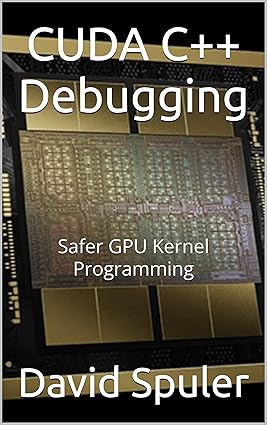
Get your copy from Amazon: CUDA C++ Debugging |